In Studio Tax, there are two options to create a new return for the current year.
Step 1: Create your return
1 - Create a new return from scratch
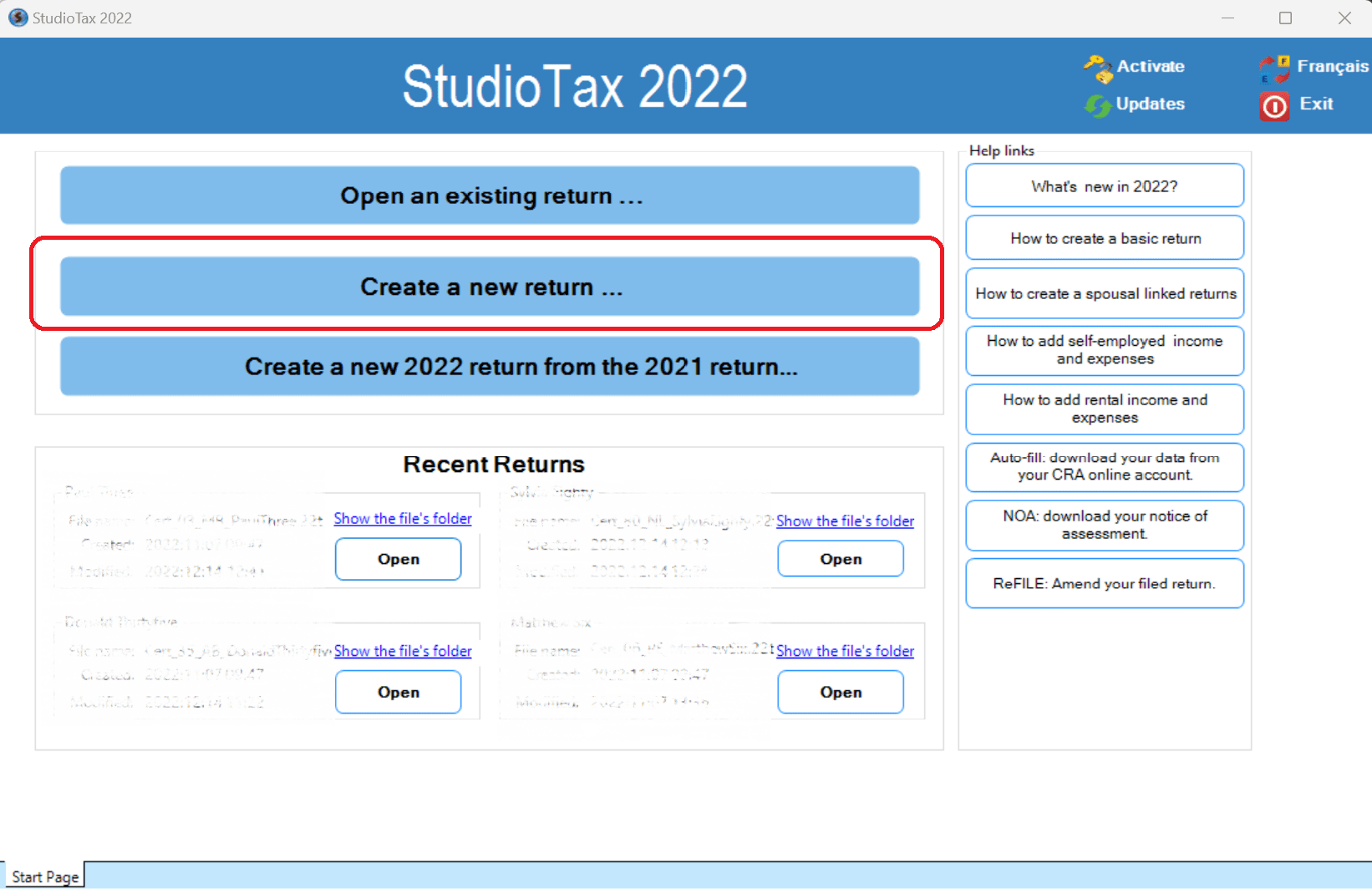
To create a new return from scratch, choose the second option (numbered 2 on the screen capture below).
2 - Create a new return from last year’s return
To create a current year’s return using the previous year’s return:
- Select the third option described by the previous screen capture.
- Select your previous year’s file — it should end with
.xxtwherexxrepresents the previous tax year. For example, you need a.21tfile to create a 2022 return.
To use this option:
- You need your last year’s return.
- You need to locate your previous year’s file in order to import it.
- Your previous year’s file should have been created by Studio Tax.
Step 2: Enter your information
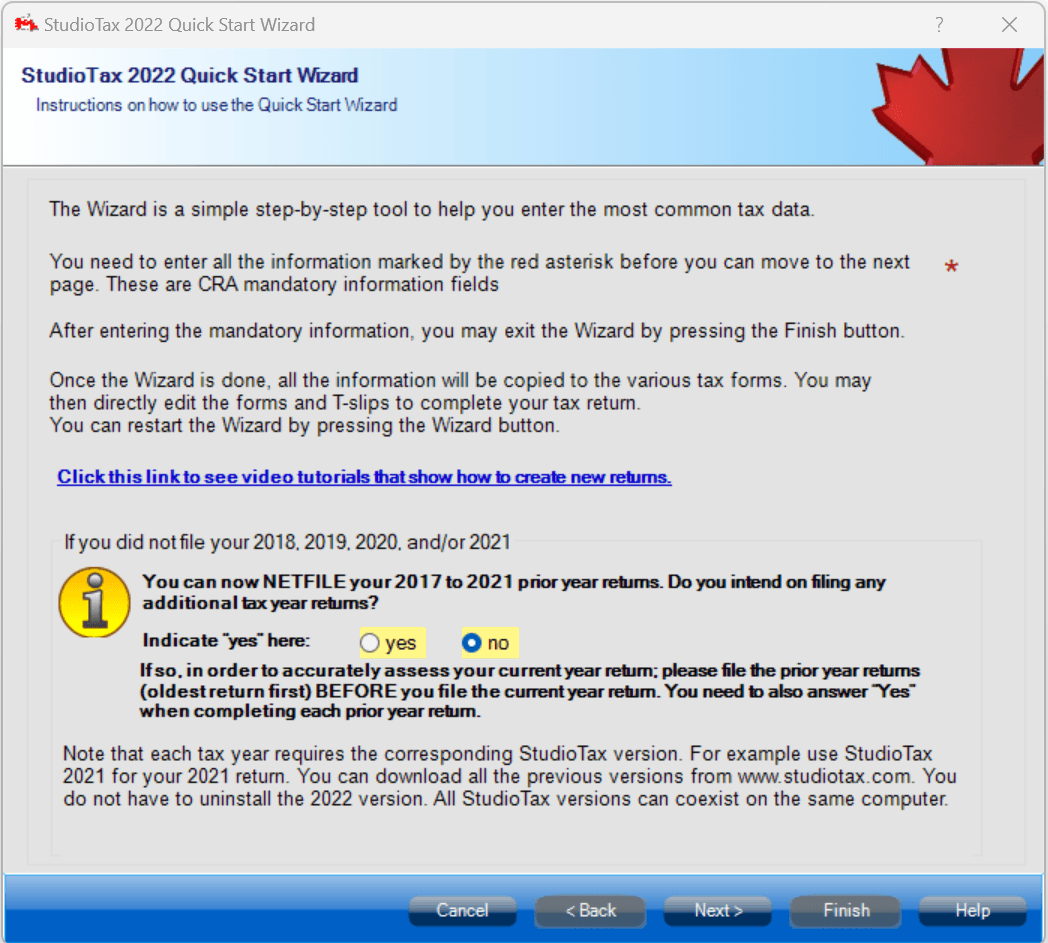
The wizard will be displayed on your screen. Enter your personal information and make sure to fill all the required fields (the ones marked with stars), then click the Next button to move to the next page of the wizard.
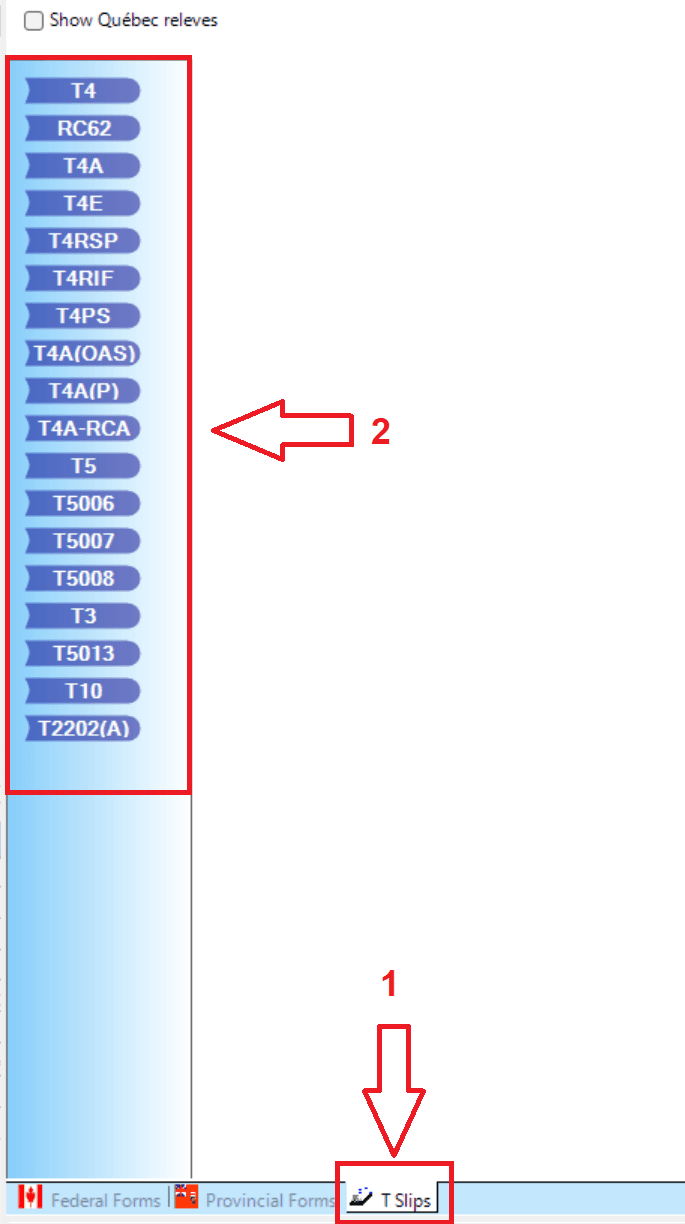
Once you have finished all the steps of the wizard, you can fill your T-slips by clicking the TSlips tab as shown in the following screen capture. Click on the tab described as 1, then select the T-slip you want to fill.
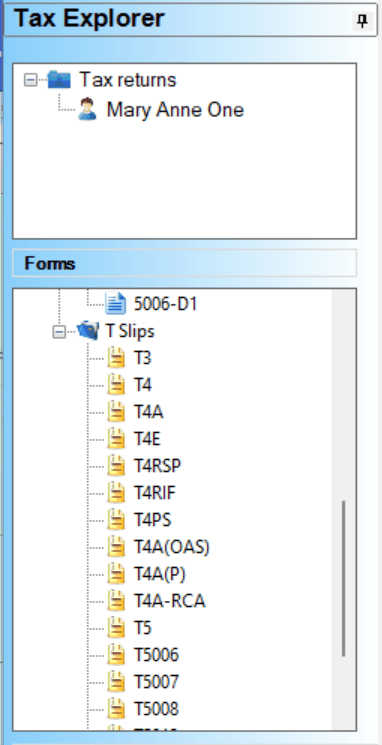
Or you can access your T-slips from the explorer on the left side:
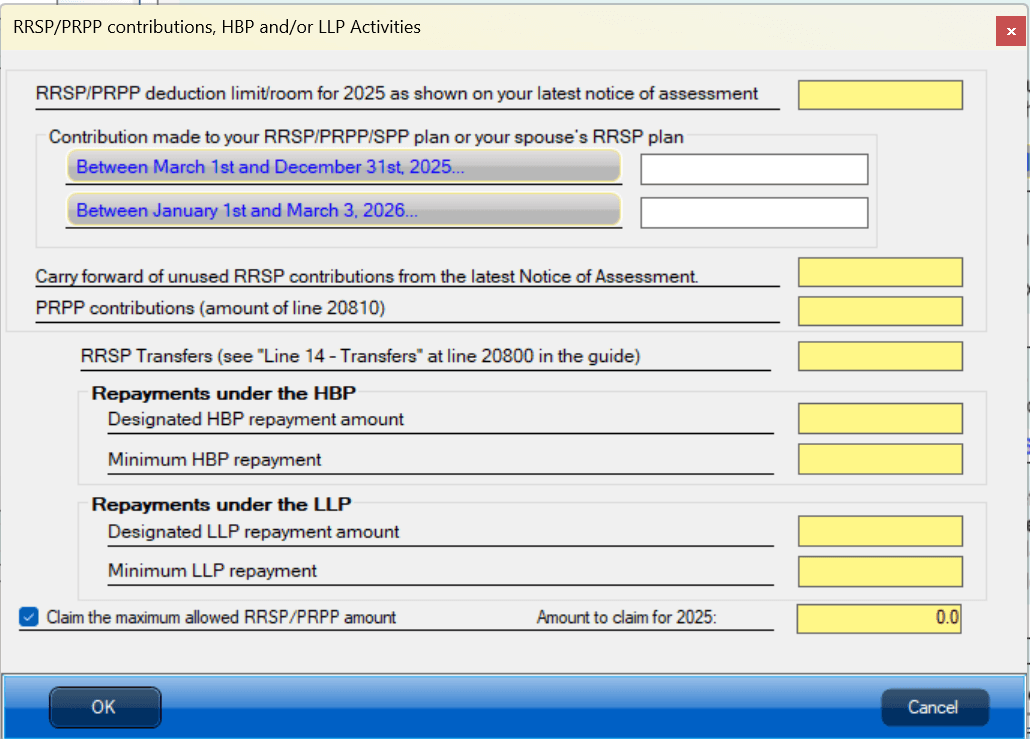
You can add other information such as RRSP by clicking the RRSP button in the menu shown below:

The RRSP window will be displayed (see the following screen capture) and Schedule 7 will be filled automatically by the software.
You can add all the information you need, then save your file to your computer:
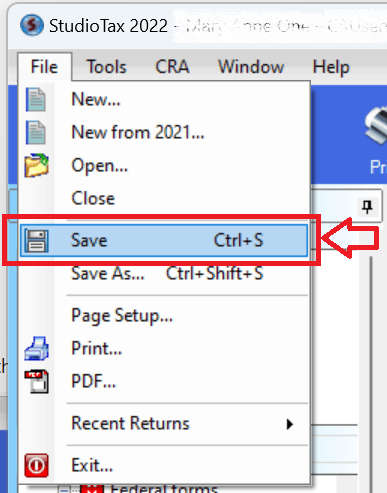
Make sure to change the save location to your preferred folder.