In Studio Tax, you can create a new return for the current year using your previous year’s return to pre-fill your personal information.
Before You Begin
Make sure you have the following:
- Your previous year’s Studio Tax return file (ends with
.xxt, wherexxrepresents the previous tax year — for example,.23tfor a 2023 return). - The file must have been created by Studio Tax.
Step 1: Open Studio Tax and Start a New Return
Launch Studio Tax. On the home screen, select the option to create a new return from a previous year’s return.
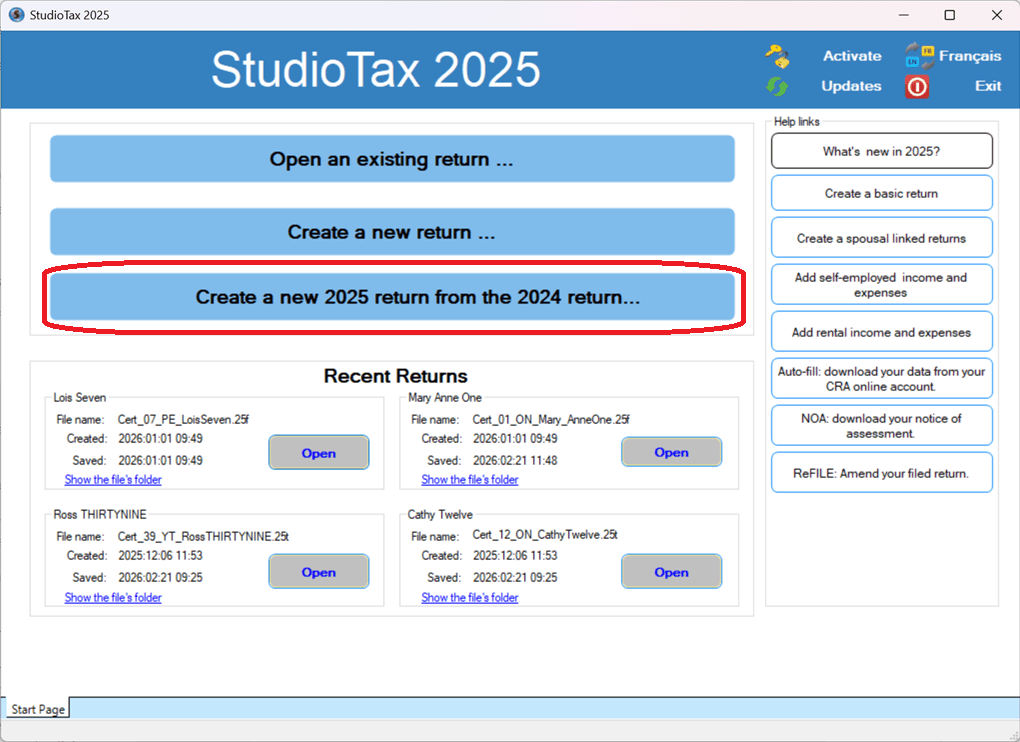
Step 2: Locate Your Previous Year’s File
When prompted, browse to the location where your previous year’s return is saved and select the file.
- The file extension indicates the tax year (e.g.,
.23t= 2023 tax year). - If you are unsure where the file is saved, check your Documents folder or the folder you used when you last saved in Studio Tax.
Step 3: Review and Confirm Your Information
Studio Tax will import your personal information from the previous year’s return and display the wizard. Review all pre-filled fields carefully and update any information that has changed (address, marital status, dependants, etc.).
Fill in all required fields (marked with a star), then click Next to proceed through each page of the wizard.
Step 4: Complete Your Return
Once the wizard is complete, you can add your T-slips, income, and deductions for the current year.
- Click the TSlips tab to enter your T-slips.
- Use the explorer panel on the left to navigate to other sections of your return.
Step 5: Save Your Return
When you are done, save your new return file to your computer. Make sure to choose a location that is easy to find for future reference.
Having trouble importing your previous year’s file? See I Can’t Import My Previous Year’s Return for troubleshooting steps.