Please follow these steps in order to activate StudioTax using your key.
Step 1 — Purchase Your License
Go to the StudioTax payment page to purchase your license.
Step 2 — Receive Your License Key
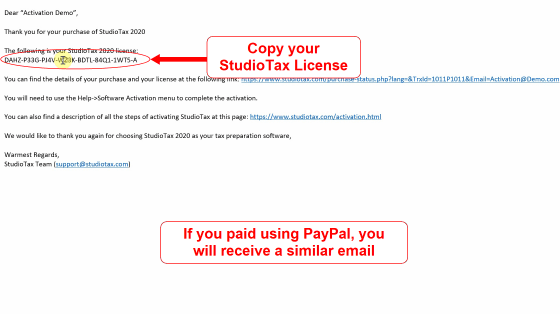
Once you complete your payment online, you will get a confirmation page with your license key as well as an email similar to that shown below that also contains your license key. If you do not receive an email, then make sure to check your email’s Junk folder.
The confirmation page will look similar to the following depending on your payment method:
Step 3 — Open the Activation Window
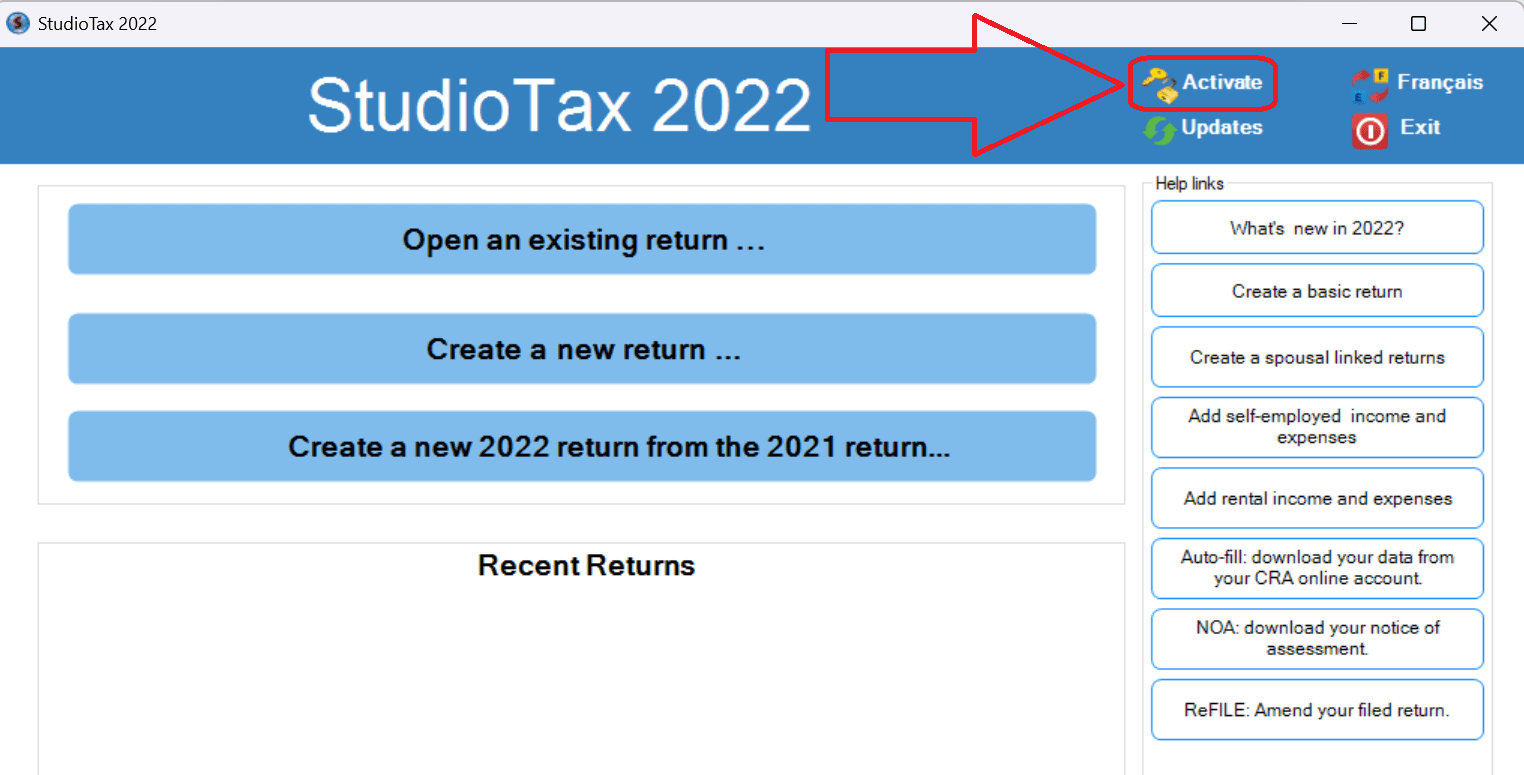
If you are on the welcome page, press the Activate button as shown below.
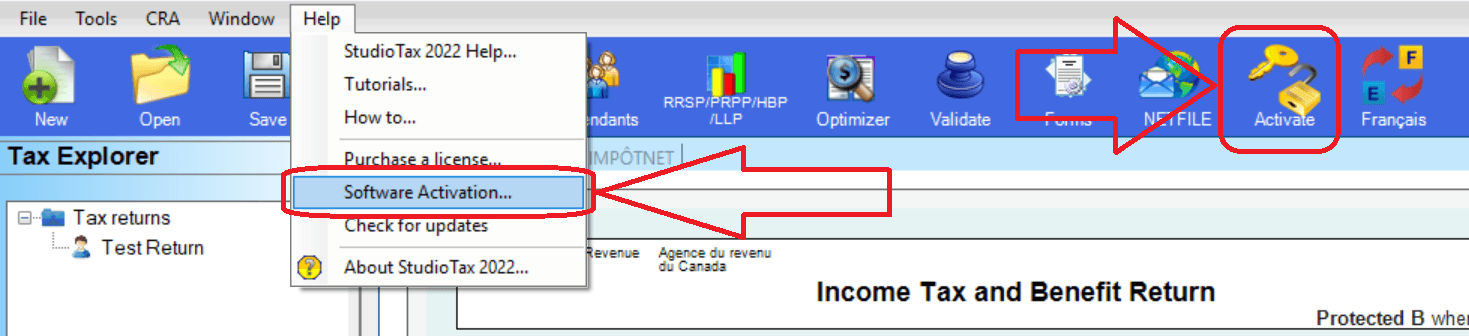
If you already have a return open, you can open the activation window directly from the menu or the toolbar.
Step 4 — Enter Your License Key
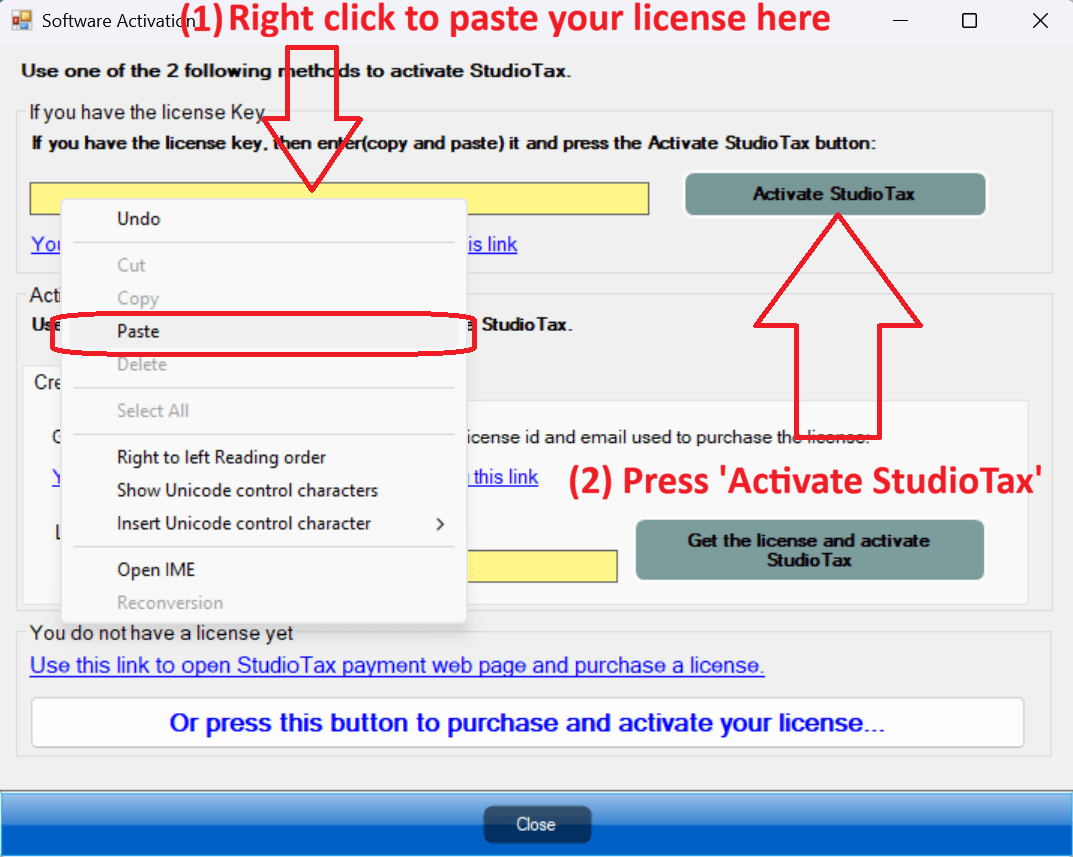
Copy and paste your activation key as shown below.
Step 5 — Activate
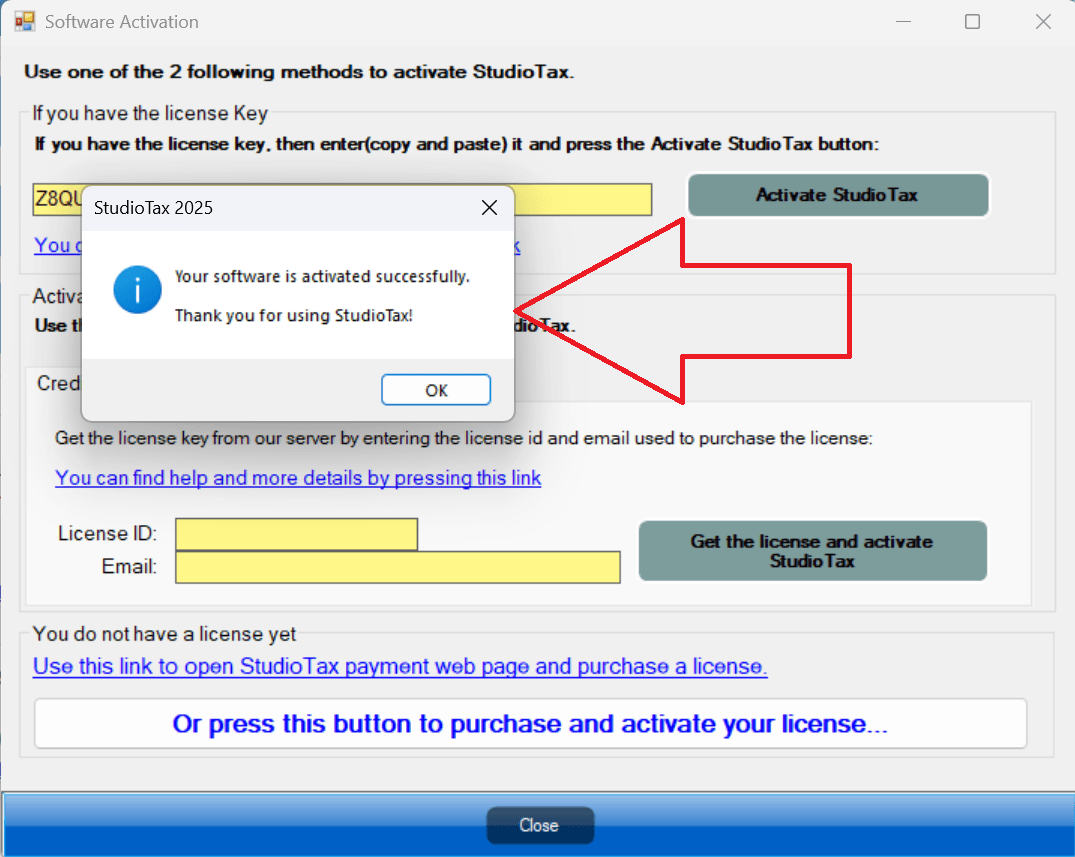
Finally press on Activate StudioTax. A pop-up will appear confirming that the activation was successful, as shown below.
Once activated, the icon and button on the welcome page will change to indicate that StudioTax is activated, as shown below.
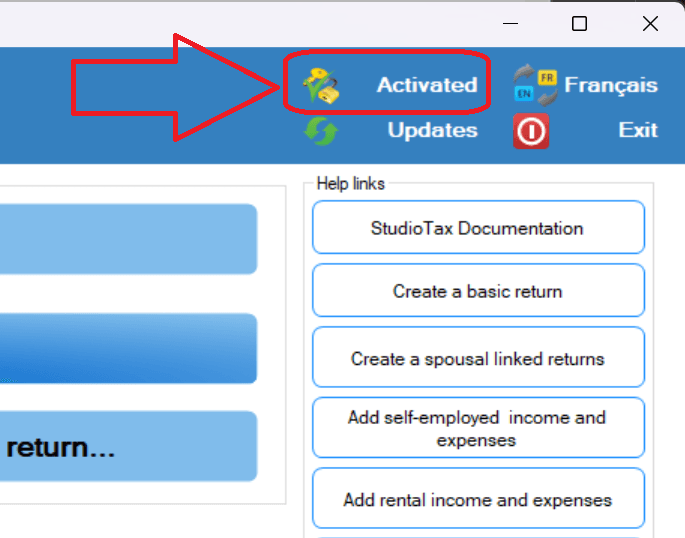
If you have a return open, the toolbar button will also update to reflect the activated status.
