To file a return, start the Netfile wizard using either the Netfile button from the toolbar:

Or use the menu CRA -> Netfile:

Step 1: Licence and software activation (if required)
The software determines if you need a licence or not in order to NETFILE or print your return.
If you see the window below, that means you need to purchase a licence and activate the software with the key. You can do so by simply clicking the button as shown in the screen capture.
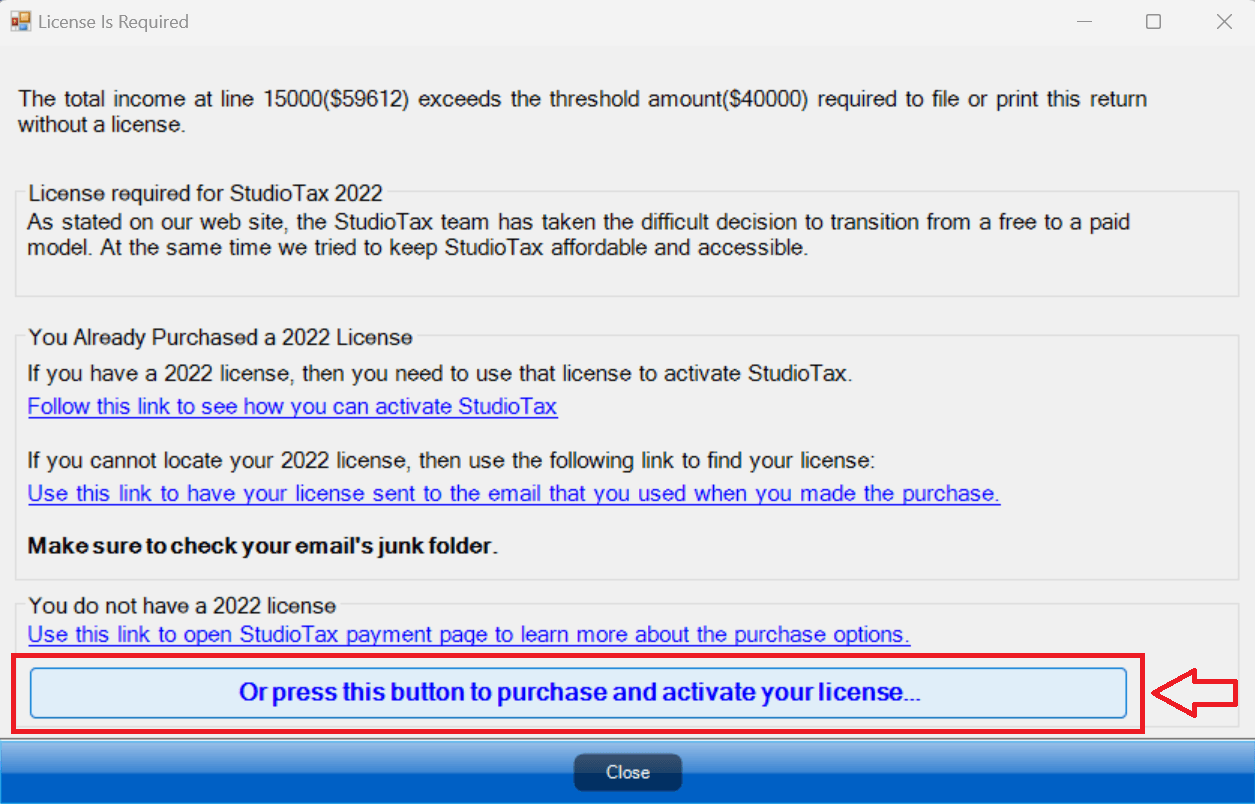
If you have already purchased a licence for the current year, you can see how to activate it.
If you don’t need a licence, the software simply won’t ask for one and you will be able to NETFILE and print with no issues.
Step 2: NETFILE wizard
Once the NETFILE wizard is displayed, make sure to read the instructions on each window and continue with the required action.
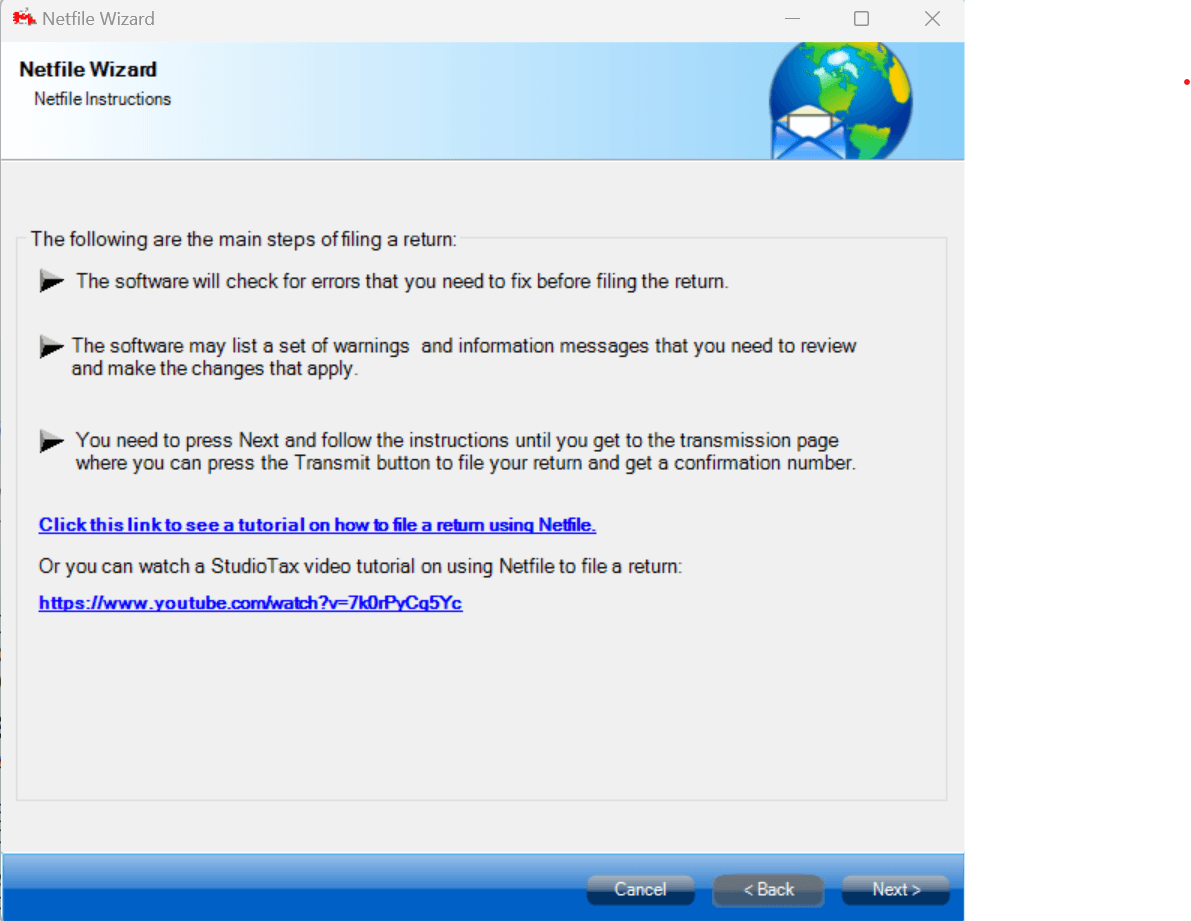
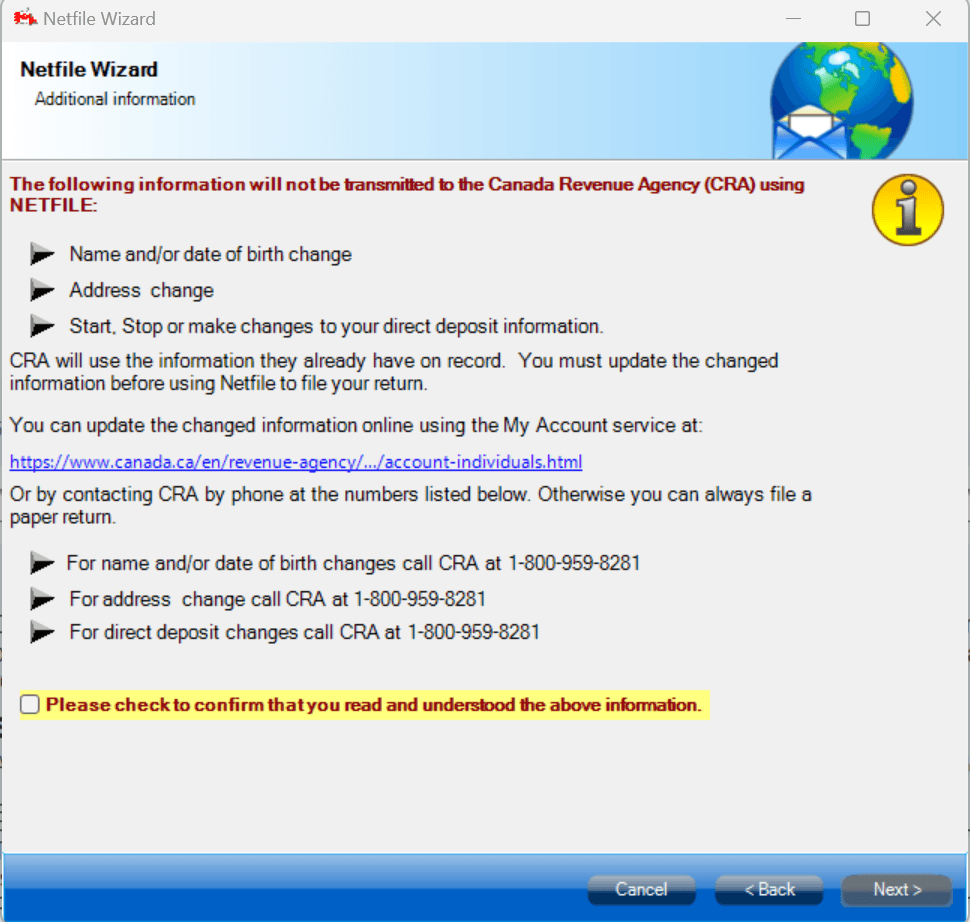
You can see in the next window that you need to confirm that you read the instructions by ticking the checkbox.
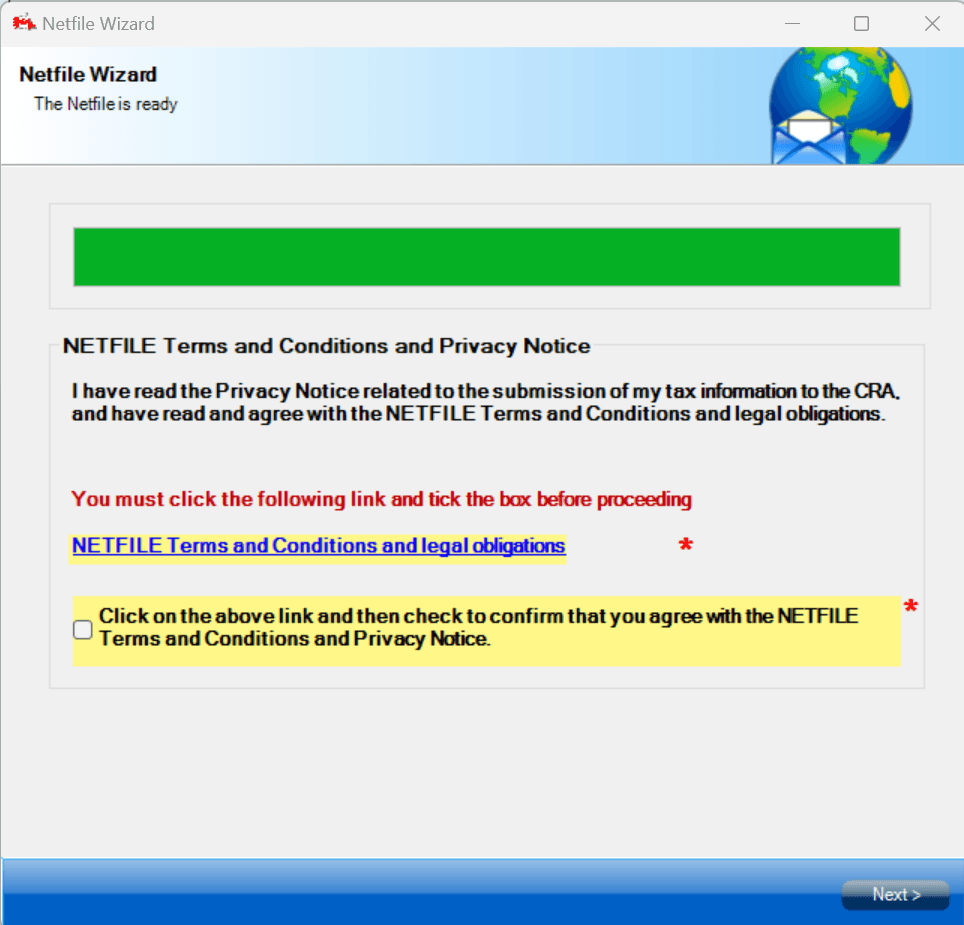
Once you are at this step, click on the link to read the NETFILE terms and conditions then tick that box.
Step 3: Transmit your return
The final step is to click the Transmit button and make sure that you have received your confirmation number. It will be displayed in the message box.
Note that the confirmation number will be saved in your return and you will be able to see it along with the transmission date and time at the bottom status bar of the main window:
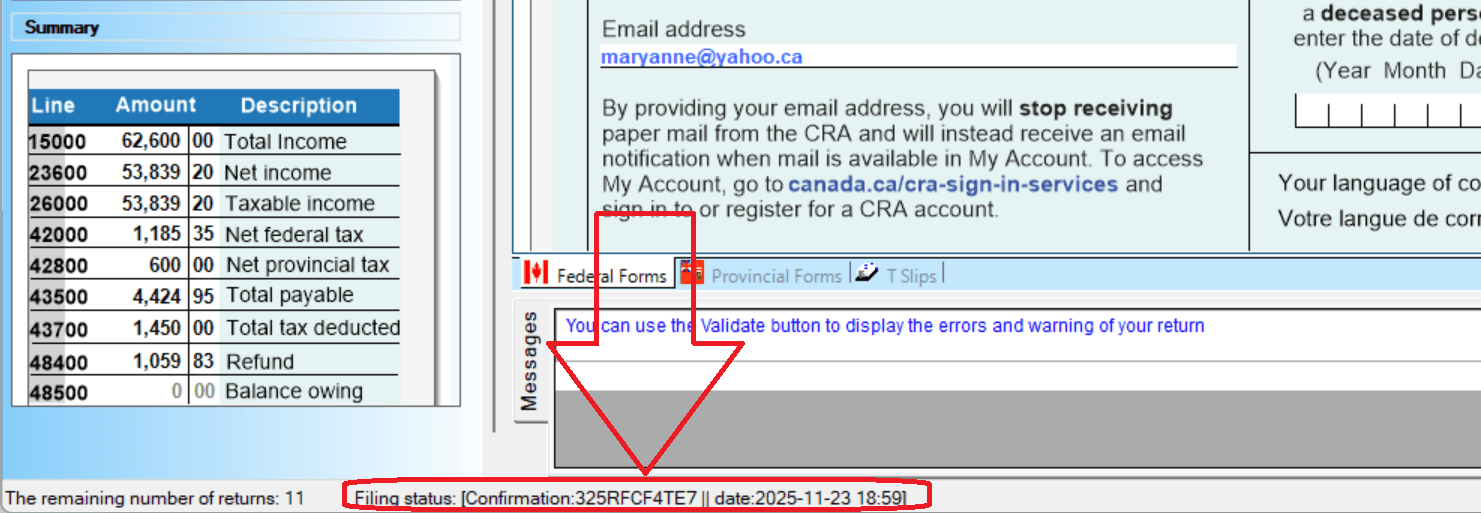
If you received an error during transmission, make sure to fix it before trying again. You can find the errors by using the Tools -> Show Filing History menu. See How to Confirm Your Return Was Transmitted for more details.