The StudioTax Android version uses the same application concepts as the Mac and Windows versions but is designed for the mobile environment. The app is form-based and has the same components as the desktop versions. If you are familiar with StudioTax, the Android version will feel straightforward to use.
Chromebook: StudioTax is not supported on Chromebook. Installing it on a Chromebook device is not recommended.
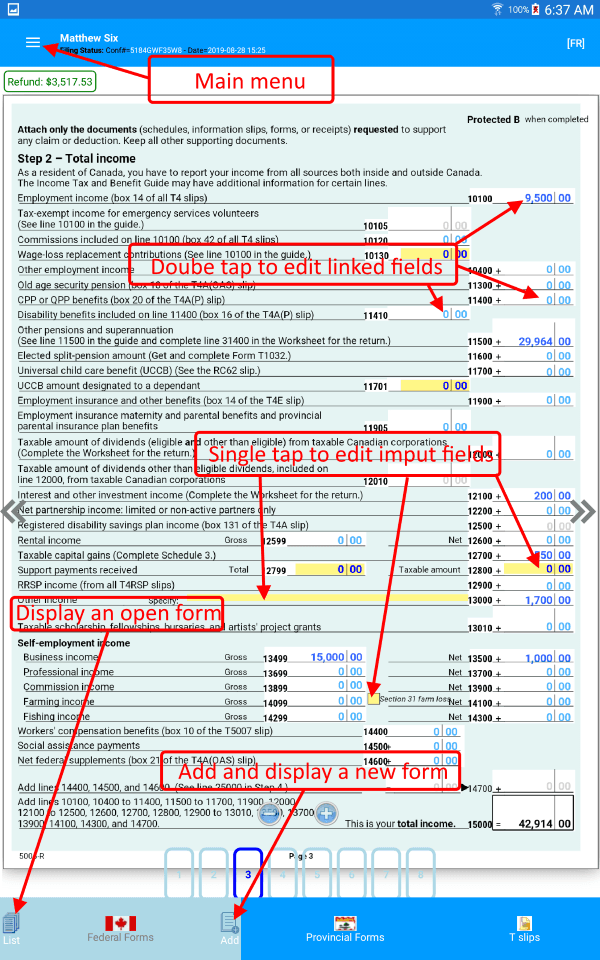
The picture below shows the first screen you see when you open or create a new return. It presents the main StudioTax features and how to access them. The Android version provides the same navigation and edit functions as the Mac or Windows versions, using a native Android user interface.
Storage Setup
One important aspect of creating a return is saving your information for future access and modification. You do not have to complete and file your return in a single session — you can create a return, enter part of your information, save it, close the app, and come back later to continue.
Use the Save menu to store your information on your device. After the first launch, StudioTax for Android will ask you to select a folder and grant access permission to it. StudioTax will use the selected folder to create a subfolder where it saves your tax files. It is recommended to use the Documents folder, as shown in the steps below.
Step 1
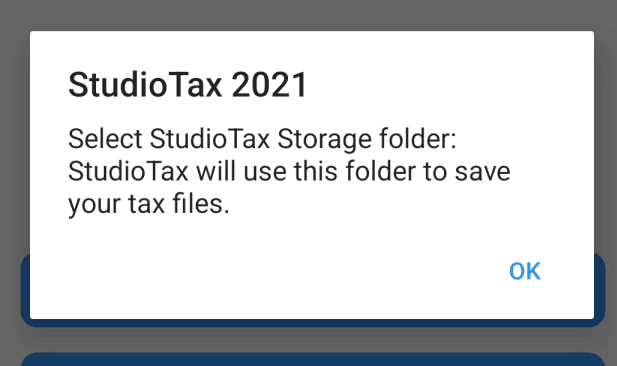
Step 2
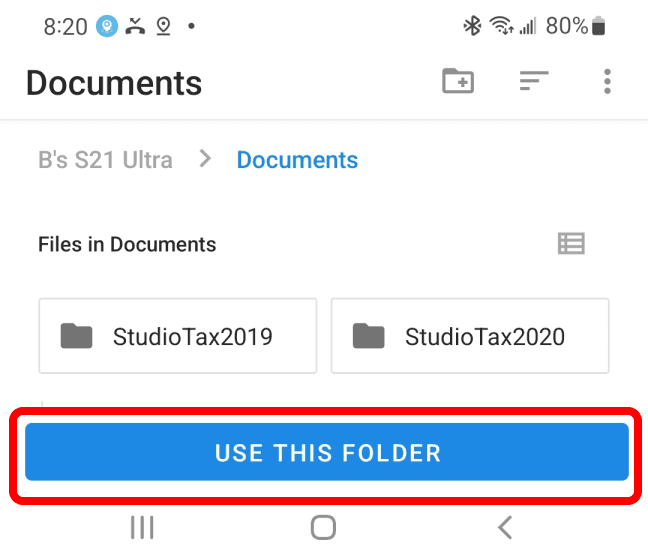
Step 3
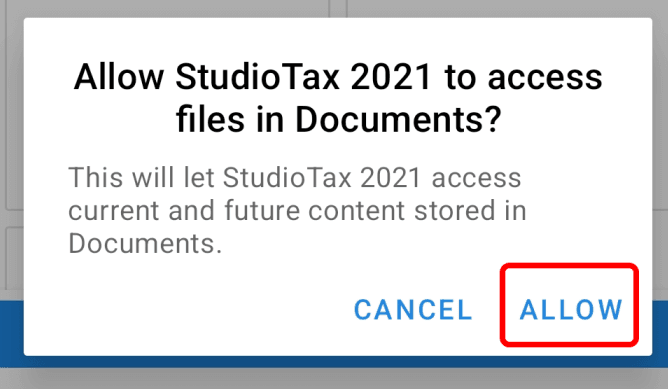
The files created by StudioTax include return files and PDF files that you can view and print. StudioTax can only save and access files from its own storage area.
Import a Previous Year’s Return
You can copy files to and from the StudioTax storage area. For example, if you have a StudioTax return file from a previous year (files end with .xxt, where xx is the two-digit tax year — e.g., .24t for a 2024 return), copy it into the StudioTax folder, then restart the app before creating your new return from that file.
Backup Your Returns
Files in the StudioTax storage area can be copied to a different location as a backup — for example, to your Google Drive or another cloud storage service.
Important: Uninstalling StudioTax removes its storage area and all files it contains will be lost. Always back up your return files before uninstalling.