StudioTax offers several ways to print your return, giving you full control over what gets printed and how.
How to Open the Print Dialog
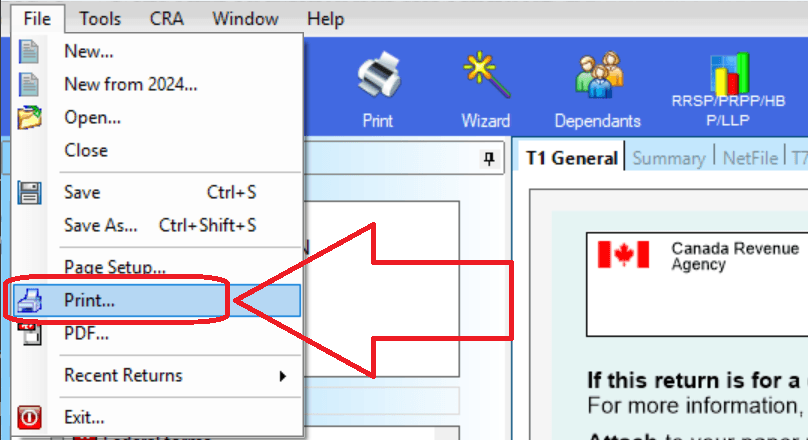
Option 1 — Toolbar button: Click the Print button in the toolbar.

Option 2 — File menu: Go to File → Print Return.
Print Format
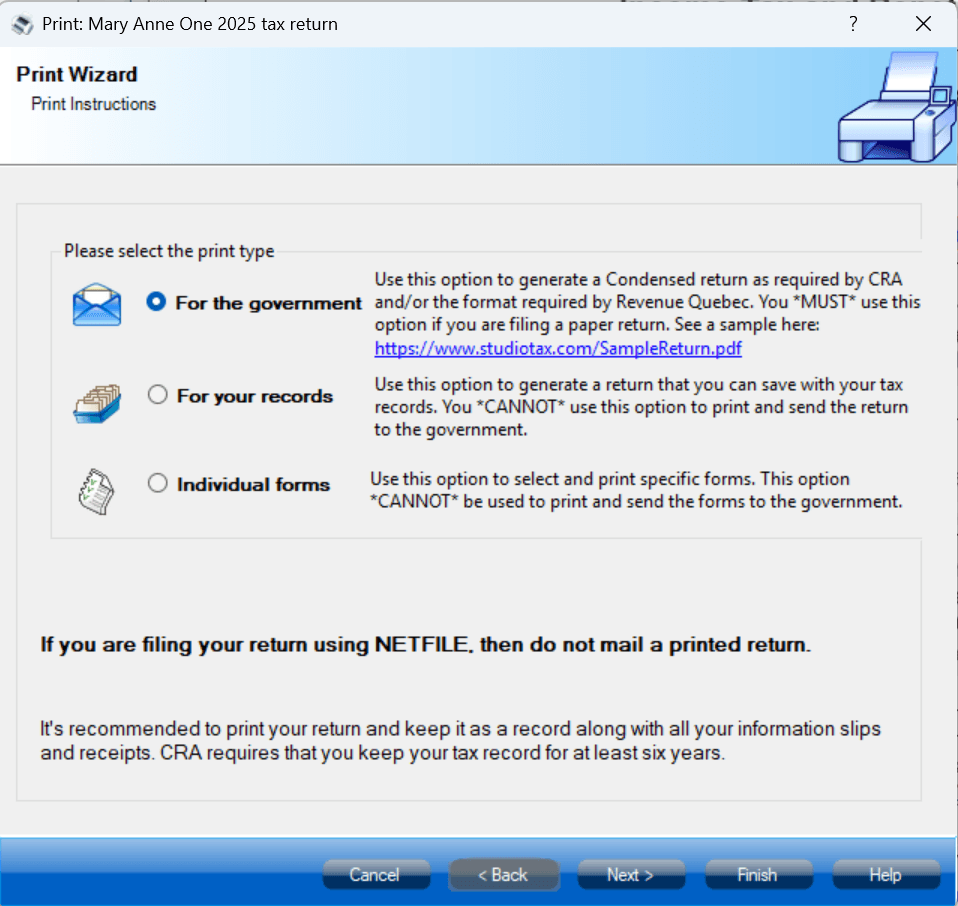
Once the print dialog opens, choose how you want to print your return:
| Format | Description |
|---|---|
| For the Government | Condensed format with barcodes. Includes only the information required by the CRA. Use this version when submitting a paper return by mail. |
| For Your Records | Prints the complete return, including all pages. Useful for keeping a personal copy. |
| Individual Forms | Lets you select exactly which forms to include. Ideal when you only need specific pages. |
Output Options
After selecting your format, choose how to output the return:
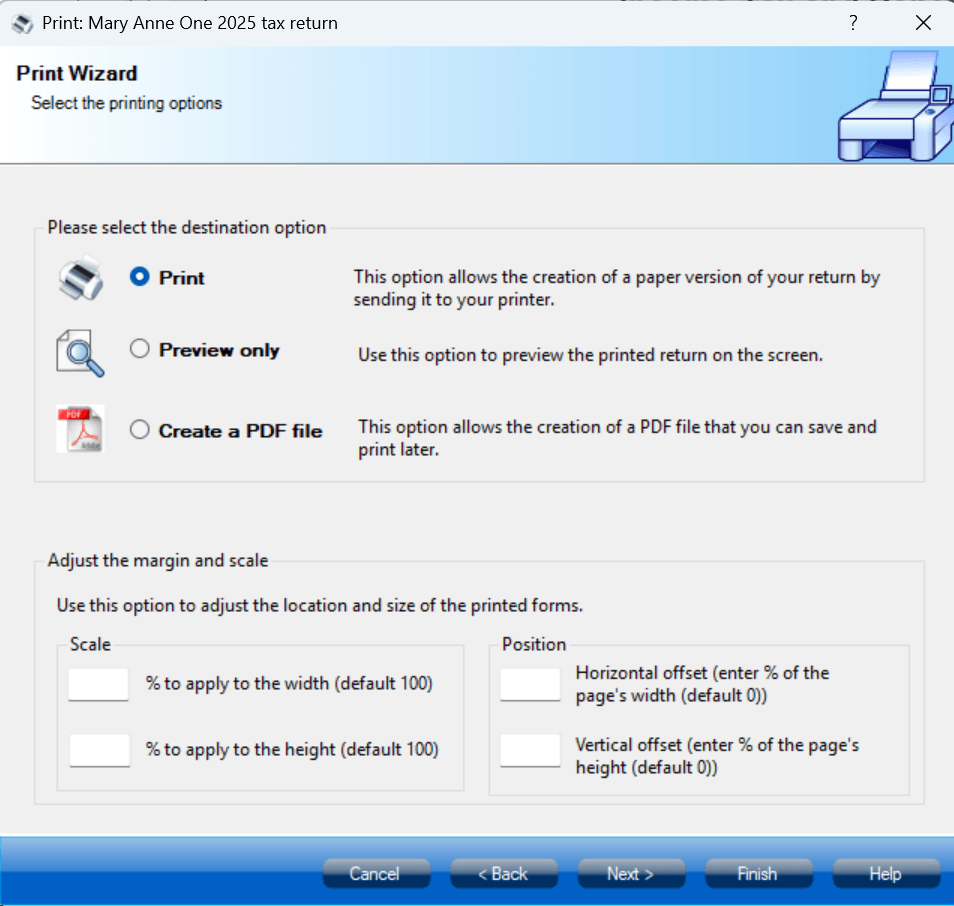
- Send to Printer — Prints a physical paper copy directly to your selected printer.
- Preview — Opens a preview so you can review the pages before printing.
- Save as PDF — Saves the return as a PDF file on your computer. You can open and print the PDF at any time.